
Ajouter ou retirer des livres dans un groupe
Créé il y a 6 mois
Pour ajouter ou retirer des livres dans un groupe dont vous êtes membre, allez sur l'onglet Groupes puis l'onglet Les miens et retrouvez le groupe dans lequel vous souhaitez agir. Appuyez sur le menu … et choisissez Ajouter / retirer vos livres. Une fenêtre s'ouvre dans laquelle vous pouvez ensuite sélectionner les livres à ajouter ou les livres à retirer.
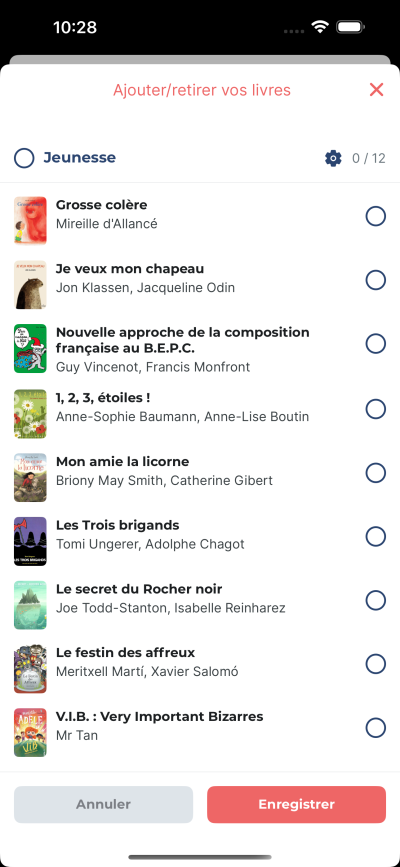
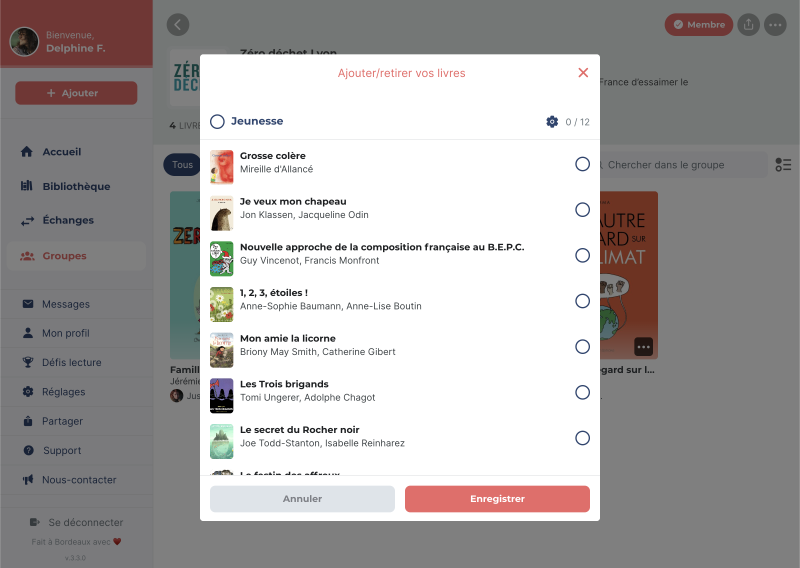
Vos livres sont présentés par étagères. Cochez l'étagère pour sélectionner tous ses livres ou cochez les livres individuellement. N'oubliez pas d'appuyer sur Enregistrer en bas à droite pour confirmer vos modifications.
Vous pouvez aussi vous rendre directement sur le livre à retirer depuis le groupe et appuyer sur le menu … puis choisir Retirer du groupe.
Partage automatique
Pour ajouter des livres automatiquement dans un groupe, allez sur la roue crantée au niveau de l'étagère puis activez Ajout automatique. Ensuite appuyez sur Enregistrer en bas à droite pour confirmer vos modifications. Tous les livres que vous ajouterez à cette étagère seront automatiquement ajoutés au groupe.
📝 Note : avant d'ajouter des livres dans un groupe vous devez d'abord ajouter des livres depuis votre compte personnel. Pour savoir comment faire, nous vous invitons à consulter ce guide.