
Les collections [premium et premium pro]
Créé il y a 6 mois
Les collections permettent d'organiser et de regrouper les livres du groupe. Elles apparaissent en haut de la page du groupe dans des cercles. Vous pouvez créer des collections pour différents thèmes, genres ou catégories afin de faciliter la navigation et la découverte des livres au sein du groupe.
Créer une collection
Pour créer une collection, appuyez sur le cercle + en haut. Une fenêtre s'ouvre où vous pouvez remplir les informations de la collection : Nom, Description ainsi que choisir le Tri des livres (par ordre alphabétique, chronologique etc.). Puis appuyez sur le bouton Créer.
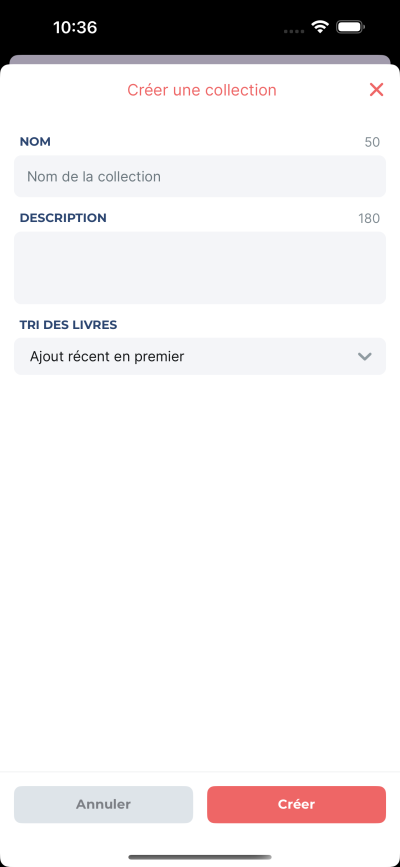
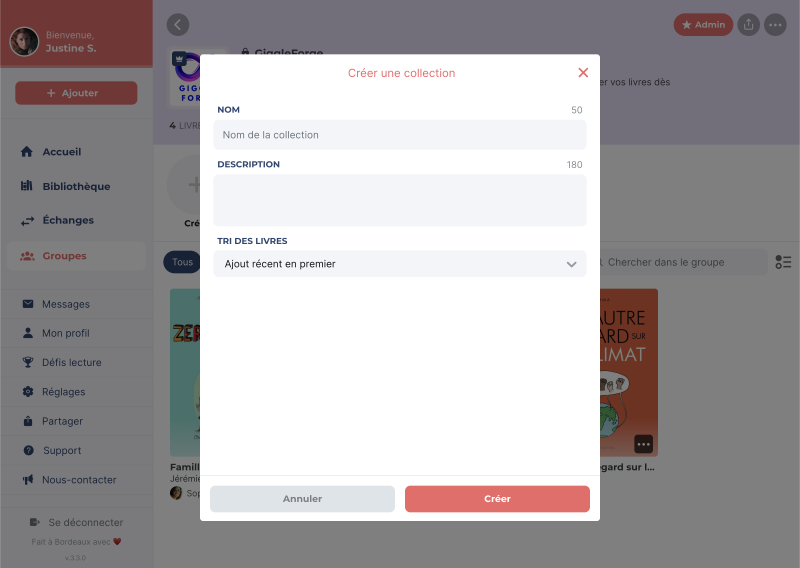
Vous voyez maintenant la collection apparaître dans un cercle en haut de votre groupe.
Ajouter des livres
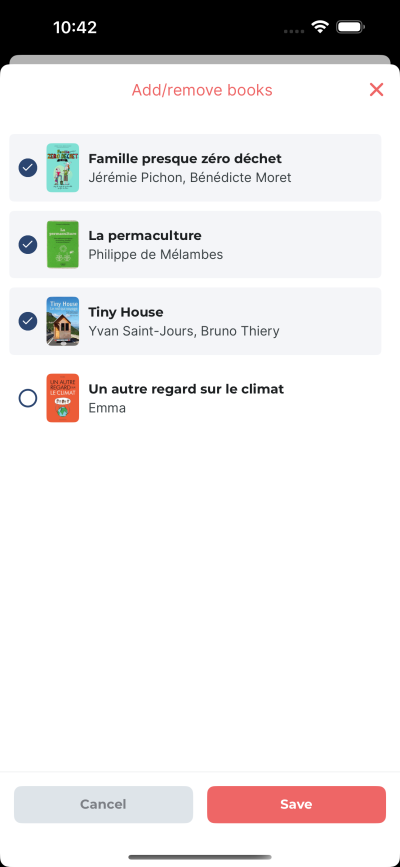
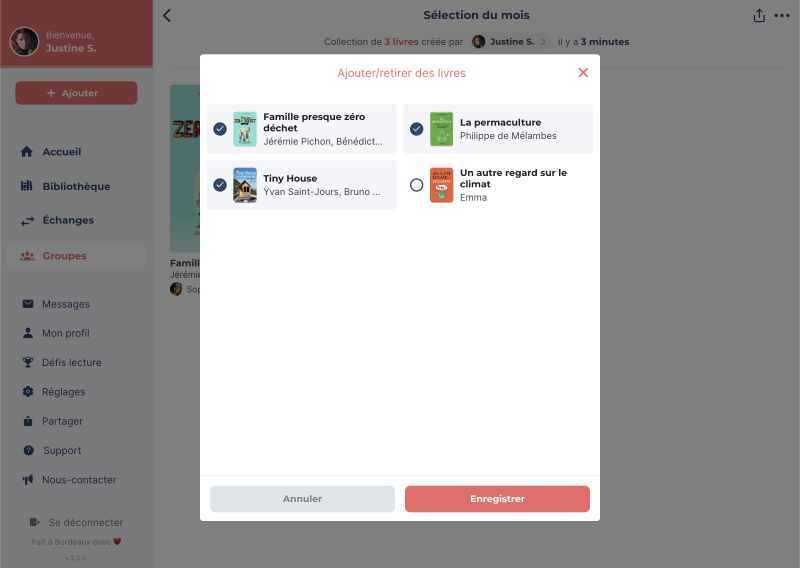
Pour ajouter des livres dans une collection, allez sur la collection où vous souhaitez ajouter des livres puis appuyez sur le menu … en haut à droite et choisissez Ajouter / retirer des livres. Une fenêtre s'ouvre dans laquelle vous pouvez ensuite sélectionner les livres à ajouter. Appuyez sur Enregistrer pour valider vos changements.
Retirer des livres
Faite la même procédure que pour l'ajout, mais au lieu d'ajouter des livres, désélectionnez ceux que vous souhaitez retirer. Appuyez sur Enregistrer pour valider vos changements.
Modifier une collection
Depuis la collection, allez sur le menu … puis choisir Modifier. Une fenêtre s'ouvre où vous pouvez remplir les informations de la collection : Nom, Description ainsi que choisir le Tri des livres (par ordre alphabétique, chronologique etc.). Puis appuyez sur le bouton Enregistrer.
Supprimer une collection
Depuis la collection, allez sur le menu … puis choisir Supprimer. Une fenêtre s'ouvre vous demandant de confirmer la suppression.
📝 Note : vous pouvez réorganiser vos collections à votre convenance en faisant glisser les cercles.