
L'emprunt en libre-service [premium pro]
Créé il y a 6 mois
La fonctionnalité d'emprunt en libre-service permet aux membres du groupe d'emprunter des livres en les scannant depuis leur smartphone sans avoir besoin de l'intervention d'un personnel.
Vous pouvez spécifier que les livres sont empruntables en libre-service en allant sur le menu … depuis votre groupe puis choisissez Ajouter / retirer vos livres. Une fenêtre s'ouvre avec le nom des étagères. Choisissez l'étagère dont vous souhaitez spécifier l'emprunt en libre-service puis appuyez sur la roue crantée pour accéder aux Options de l'étagère.
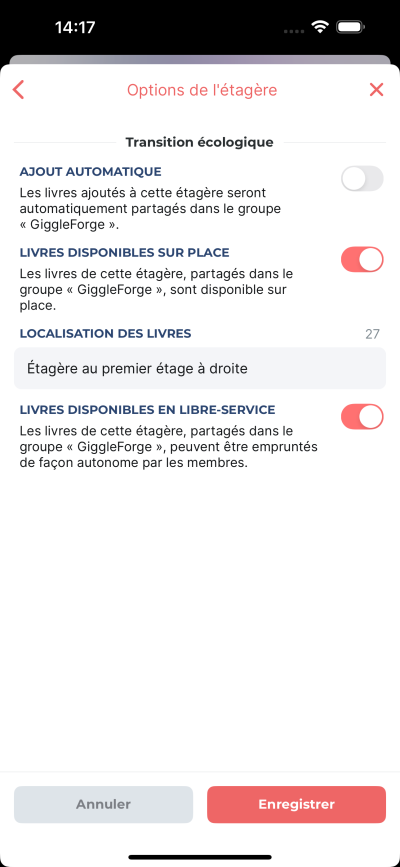
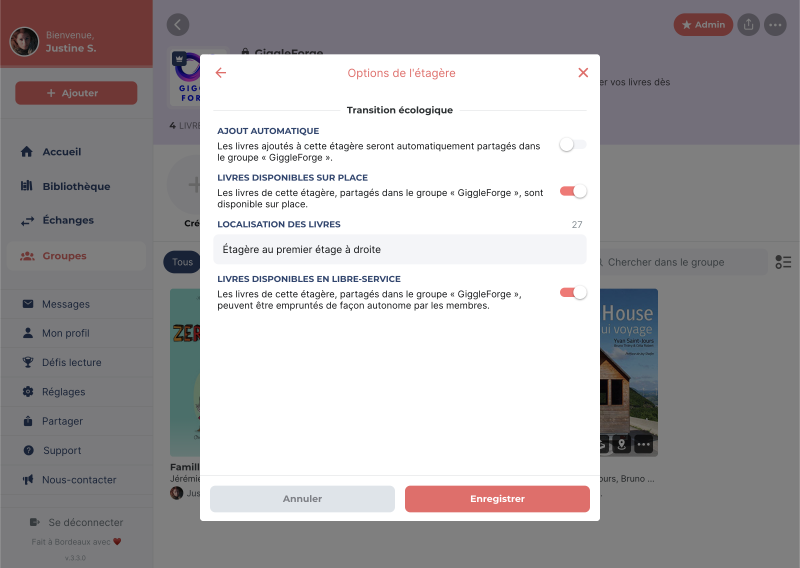
Commencez par activer l'option Livres disponibles sur place pour faire apparaître le champ Localisation des livres et l'option Livres disponibles en libre-service. Utilisez le champ de localisation pour spécifier où se trouvent les livres. Cette information sera affichée sur les livres provenant de cette étagère dans le groupe. Activez l'option libre-service et appuyez sur Enregistrer.
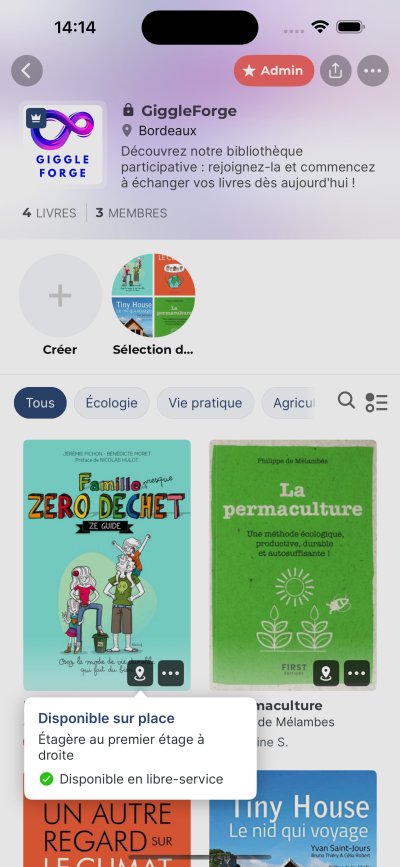
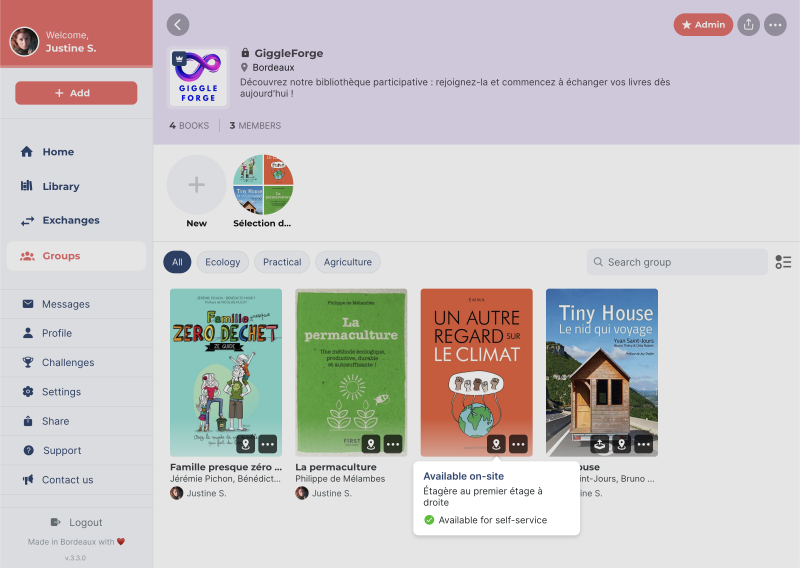
Il existe deux manières d'effectuer un emprunt libre-service. Soit directement depuis le groupe dans l'application MyBlio en choisissant Emprunter dans le menu … d'un des livres disponible ou en scannant le QR code affiché à proximité des livres physiques (généralement une étagère ou une bibliothèque). Dans les deux cas, l'emprunteur·euse doit avoir accès aux livres physiques afin de pouvoir emporter celui emprunté. Seuls les membres du groupe peuvent effectuer des emprunts en libre-service.
Vous pouvez télécharger une affiche intégrant le QR code en allant sur le menu … du groupe, puis Options de partage. Une fenêtre s'ouvre, appuyez sur le bouton Télécharger l'affiche.
📝 Note : l'emprunteur·euse peut signaler le retour du livre directement depuis l'application MyBlio.